Json
The JSON import allows data to be imported from JSON format.
The JSON import profiles can be accessed on the Admin tab of the ribbon bar

A new tab will appear
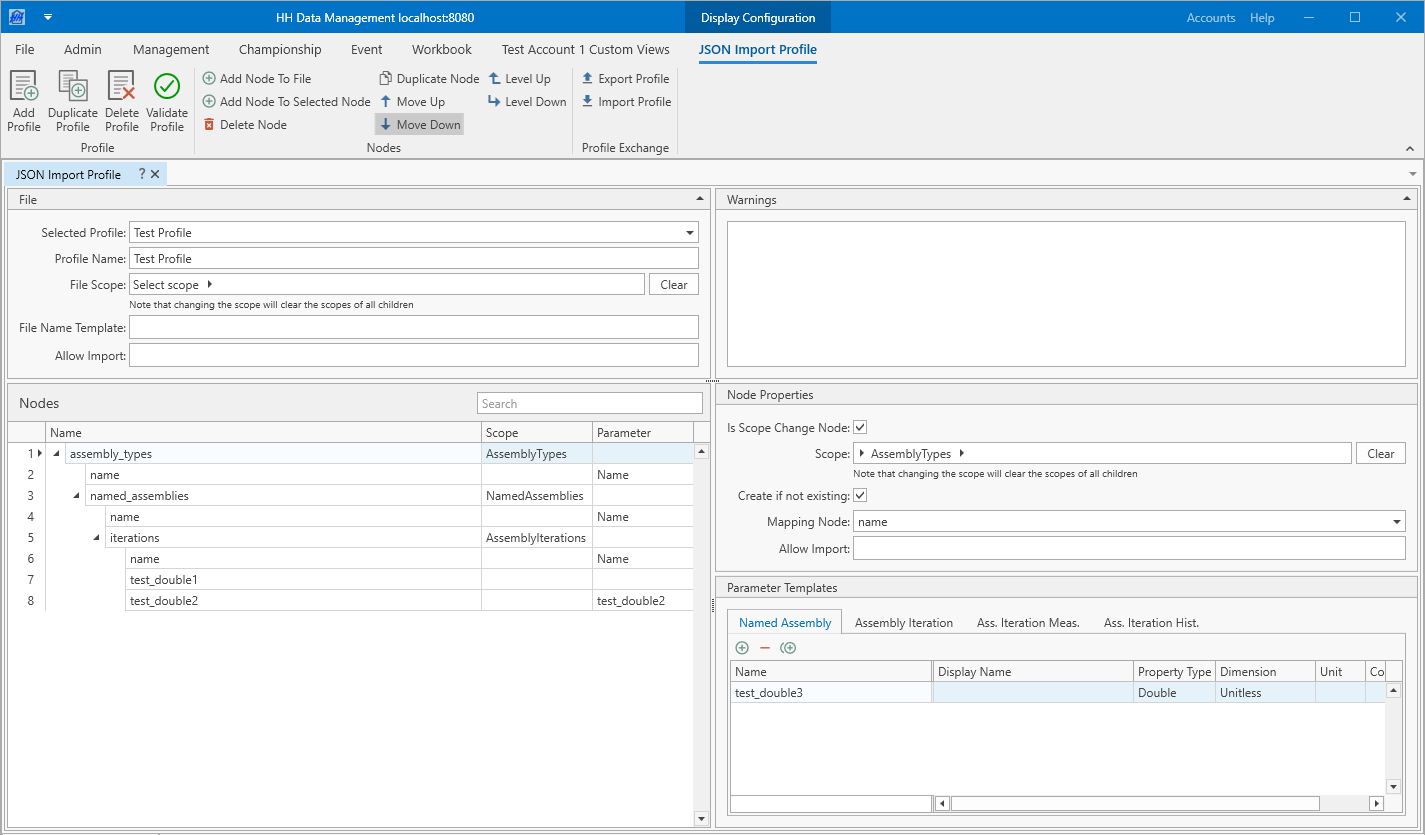
File
The options for the JSON file are defined at the top of the page:

In this current example, the File Scope is Championships → Events → EventsCars. This means that a new file will be created for each car in each event that is selected for export.
- File Scope: defines the root scope. For imports this field will often stay empty. If you have for example 5 assembly types that should get imported and those 5 assembly types are defined in one JSON file, then the file scope will stay empty and the first node in the tree should have its scope set to "AssemblyTypes". However if each assembly type is defined in its own JSON file, then the file scope needs to get set to "AssemblyTypes". The correct selection of the file scope depends on the JSON file.
- File Name Template: this is the name of the JSON file that will be generated. The notation can be used to access variables from the current scope.
- Allow Import: an expression can be written here that returns a boolean value to say whether the file should be imported. The expression can be written directly in the textbox with no need to wrap it in the characters. If this field is left blank then the file will always be imported.
Nodes
The content of the file is defined in the tree structure. Nodes can be added as children of other nodes and inherit the scope from their parent. Every node in the JSON file should have one respective node in the tree structure with the same name.
- Allow Import: an expression can be written here that returns a boolean value to say whether the node should be imported. The expression can be written directly in the textbox with no need to wrap it in the characters. If this field is left blank then the node will always be imported.
- Mapping Node: defines which node in the JSON file is used to map the entity from the database to the node in the JSON file. In the example below the mapping node has a name of 'Name', a parameter of 'Name' and the scope is AssemblyTypes. That means that the entities in the database and the nodes in the JSON file are getting mapped as follows. The value from the JSON file in the name node is considered as mapping value. Then for each assembly type the parameter value of the parameter 'Name' is getting compared to that mapping value. If both values are the same the matching entity is found. Usually a Mapping Node is only used in a scope change node, i.e. when Is Scope Change Node is checked.
Scope change nodes
Selecting the Is Scope Change Node checkbox will give access to the scope selection control. A scope change node will normally result in an array object getting created in the JSON file.

In this current example the scope is AssemblyTypes, meaning that the JSON file is expected to contain an array with nodes that define an assembly type.
- Create if not existing: defines if an entity in the database gets created if there is not already an entity existing that matches the node in the JSON file. If there is no matching entity existing and Create if not existing is unchecked, the node will get skipped.
Nodes with content

- Local Scope: compared to the scope the local scope only defines the scope of this node and the local scope is not inherited to the child nodes of that scope. The local scope is for example useful if the current scope is EventCarData and 'Car.Number' should get accessed. In this case the local scope can get set to 'Car' and then in the Parameter dropdown 'Number' can get selected. The local scope expression can be empty, but if it's not empty it needs to be an expression that returns a FlatModel (not for example a double or text parameter).
- Parameter: is the parameter of an entity that the value from the JSON file is getting written to.
- Value Manipulation: an expression that can manipulate the value coming from the JSON file. To access the value from the file write 'RawValue' into the expression. The raw value is always considered as a string at first. If the job is to for example divide the raw value by 100, then the expression could look like: 'StringToDouble(RawValue) / 100'
- Source Unit: if the selected Parameter is a double type with a dimension, then the source unit of the value coming from the JSON file can be defined. For example if the value in the json file is 100 and the unit of that value is 'mm' and the selected Parameter is of type double with the dimension length then the source unit can be set to 'mm'. This will enable automatic unit conversion during the import. For example if the unit of the selected Parameter is 'm' then the value 0.1 will get imported instead of 100.

Parameter templates
For nodes which are scope change nodes and the scope is set to either 'AssemblyType' or 'PartCategory' and Create if not existing is true, an additional input shows up on the UI, the Parameter Templates:

When the importer creates a new assembly type or part category it also creates definitions for the child entities (like NamedAssembly, AssemblyIterations or Part, PartItems). The Parameter Templates can be used to automatically create parameters in those definitions, and these parameters can then be used in the import to import data from the JSON file.
Profile Validation
When selecting a json import profile or when clicking the Validate Profile button a number of validation checks on the profile are run in the background.

These validation checks might produce warnings that are then displayed in the Warnings panel. These warnings should be carefully reviewed before running an import. Every warning contains the line number and the name of the node as well as a description. After resolving a warning it's necessary to click the Validate Profile button to reevaluate the warnings.