Web App
The web app can be found at web.hh-dm.com
This feature is under development, so not all functionality is fully implemented, and what is implemented may change in the future. Please don't hesitate to report any bugs, undesirable behaviour from the system or general feedback. Feedback from customers will be used to prioritize the implementation of specific features.
The HH Data Management Web App extends key features of the desktop software to a web-based platform, enabling users to access data without installing desktop applications or managing synchronization and subscriptions. The web app currently supports two main functions:
- Main graph
- Custom views
Activating on your account
Please contact us to have the web app activated on your organization's HH Data Management account.
Permissions
By default no users will have access to the web app. Permissions for the desktop version and web application are separate. This enables users to be given access to each platform independently. The access to the web app is controlled at the Group level.
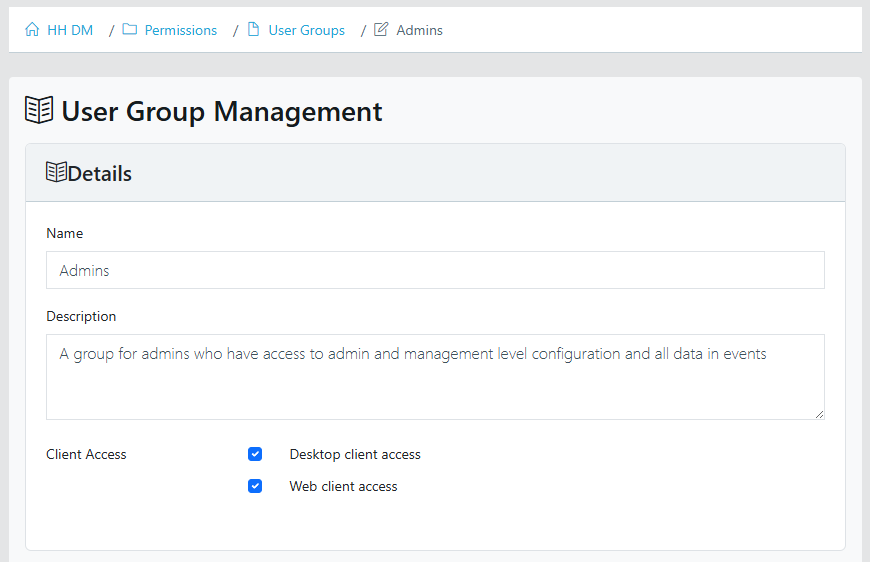
Once a user has access to the web app, the data access is controlled using the Data Access Rules like in the desktop application. The view access is controlled depending on the type of page being accessed: the main graph or the custom views.
Main graph permissions
To access the main graph on the web app a user needs at least read access to the Graph entity on the API Rules Profile.
If a user wants to edit the main graphs that are available on the web application, they need to have access to the Event.MainGraph.WebApp permission in the Client Permissions. Note that this node doesn't exist by default and will need to be created manually.

Custom view permissions
For the custom views the viewing permissions are handled using the Client Permissions based on the permissions that are defined in the custom view definition.
However, for writing data the custom views use the normal API endpoints. This means that to make any updates (create, update or delete entities) from a custom view in the web app the user needs to have the corresponding permissions in the API Rules Profile. For example to update a setup from a custom view the user must have at least update permissions on the Setup entity.
Navigation
The main navigation menu can be found in the top left corner. In the top right corner is the account selection (if a user has access to more than one HH Data Management account), dark theme button, and user profile information.

Main graph
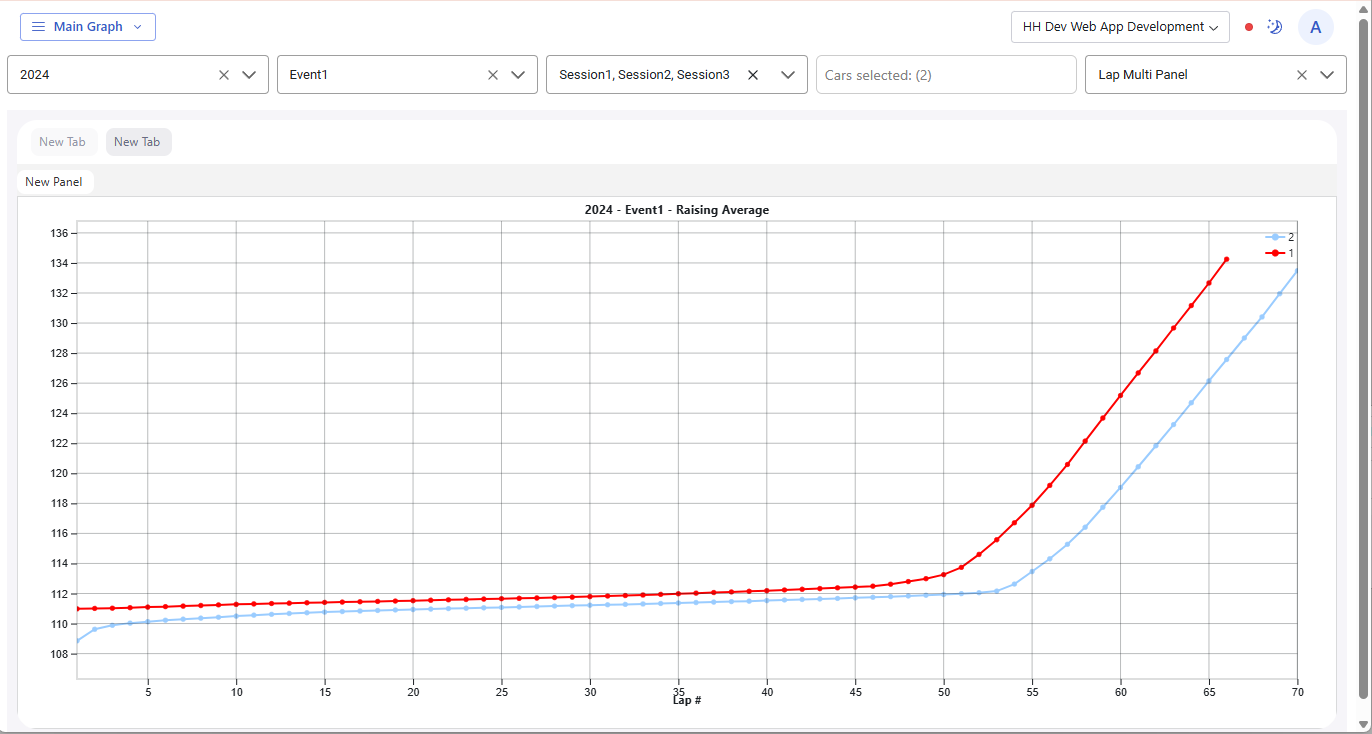
The concept for the main graphs in the web app is that the graph configurations are created in the desktop software, and then once complete they are uploaded to the web app and can be viewed in the web app. There is no option to edit the structure of the graphs in the web application.
The comboboxes at the top of the window are used to select championship, event, sessions and cars to be plotted. The right-most combobox is used to select which main graph configuration you want to display.
Editing graphs
If a user has access to the Event.MainGraph.WebApp permission then the following buttons will appear in the ribbon bar:

These buttons have the following functions:
- Save current to web app: saves the current main graph configuration to a new web-based graph profile
- Save current to existing web app: saves the current main graph configuration to an existing web-based graph profile
- Load graph from web app: loads a main graph configuration from an existing web-based graph profile
- Delete profile from web app: deletes a web-based graph profile
Only the graph configuration is saved, the filter information (selected championship, event, session and any custom filters) from the desktop is not saved to the web app. These are selected by the users of the web app when they are viewing the graph.
The custom filter does not have an equivalent on the web app. Instead of using the custom filter in the main graph, it is recommended to use the filter expression available on the data set scope to filter which data points are shown.
These operations act through the API, so the API Integration needs to be set up in the desktop client for this to work.
Custom views
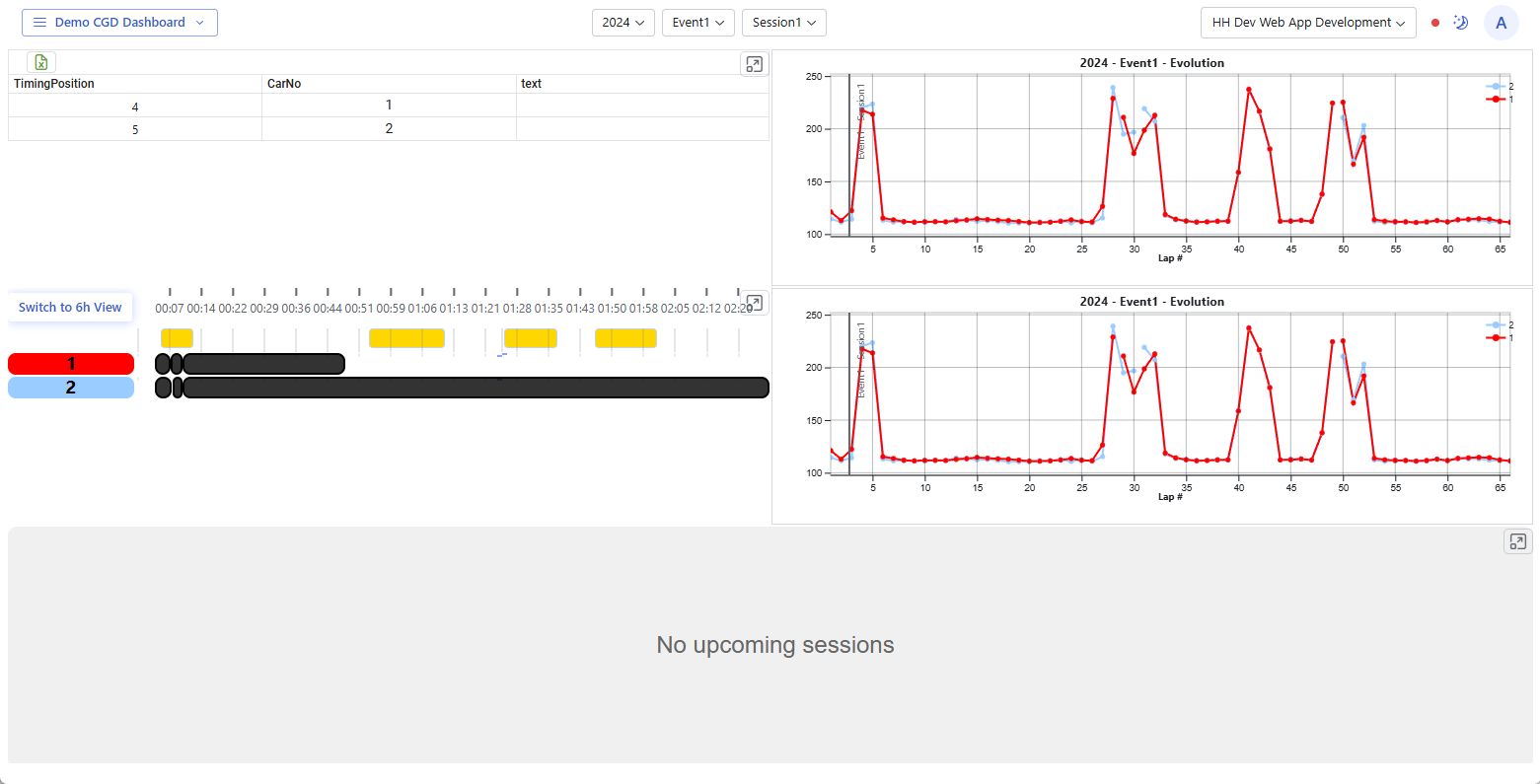
The goal for the custom views in the web app is to replicate the custom views that are shown in the desktop application. Only CGD custom views are supported at this time. However, this should not pose any limitation as the CGD can be used to recreate single table and CID views.
The context selection can be found along the top of the view. The available comboboxes will vary depending on the type of custom view that is being shown.
Configuring custom views
The only special requirement for a custom view to be shown in the web app is that its name must start with the string [WEB], for example [WEB]Session Dashboard. Other than that, no extra steps are required for a custom view to be shown in the web app.