Displaying shared images via attached files
This article explains how to use attached file parameters to display a common image across multiple linked items (for example, displaying a car model picture within a setup or an item measurement).
This workflow can be applied to different definitions to display a picture per car, per event, or per any other entity.
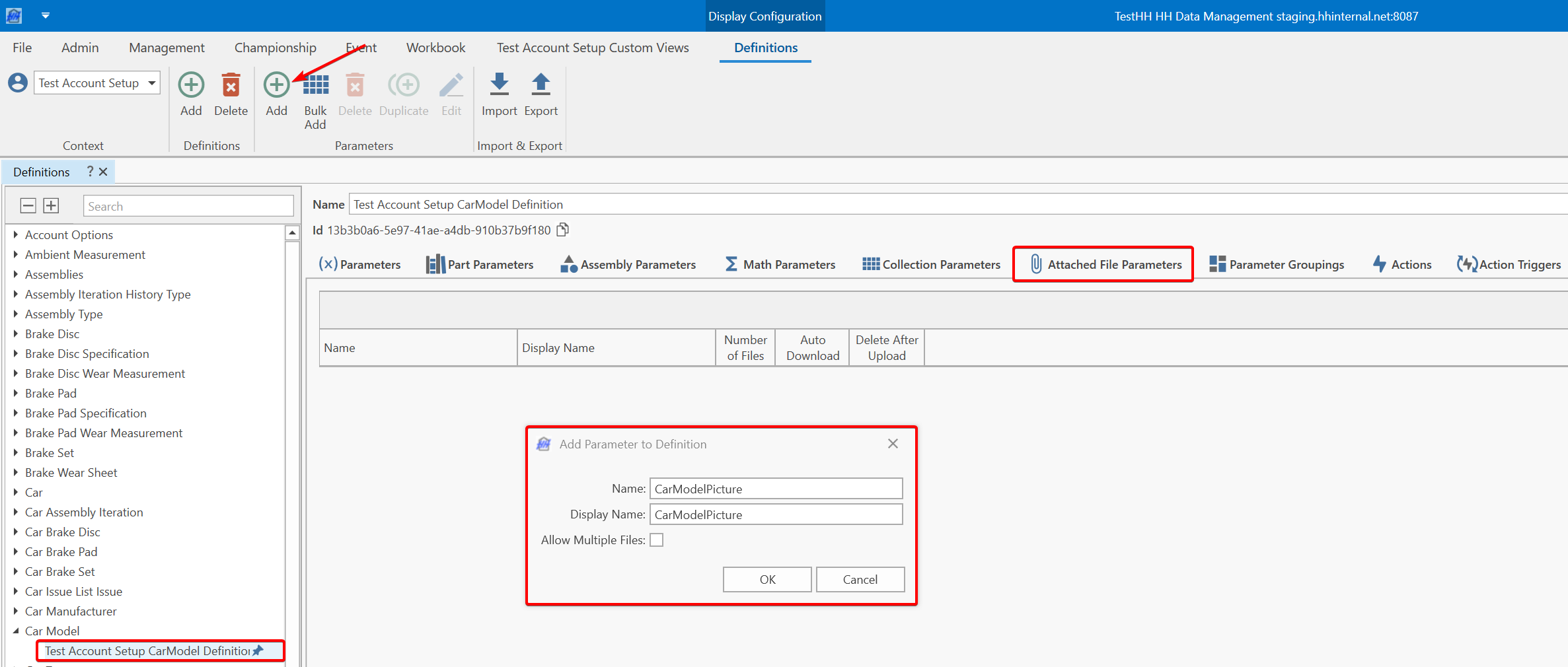
Add an attached file parameter
Add an attached file parameter to the parent definition (e.g., the car model definition).
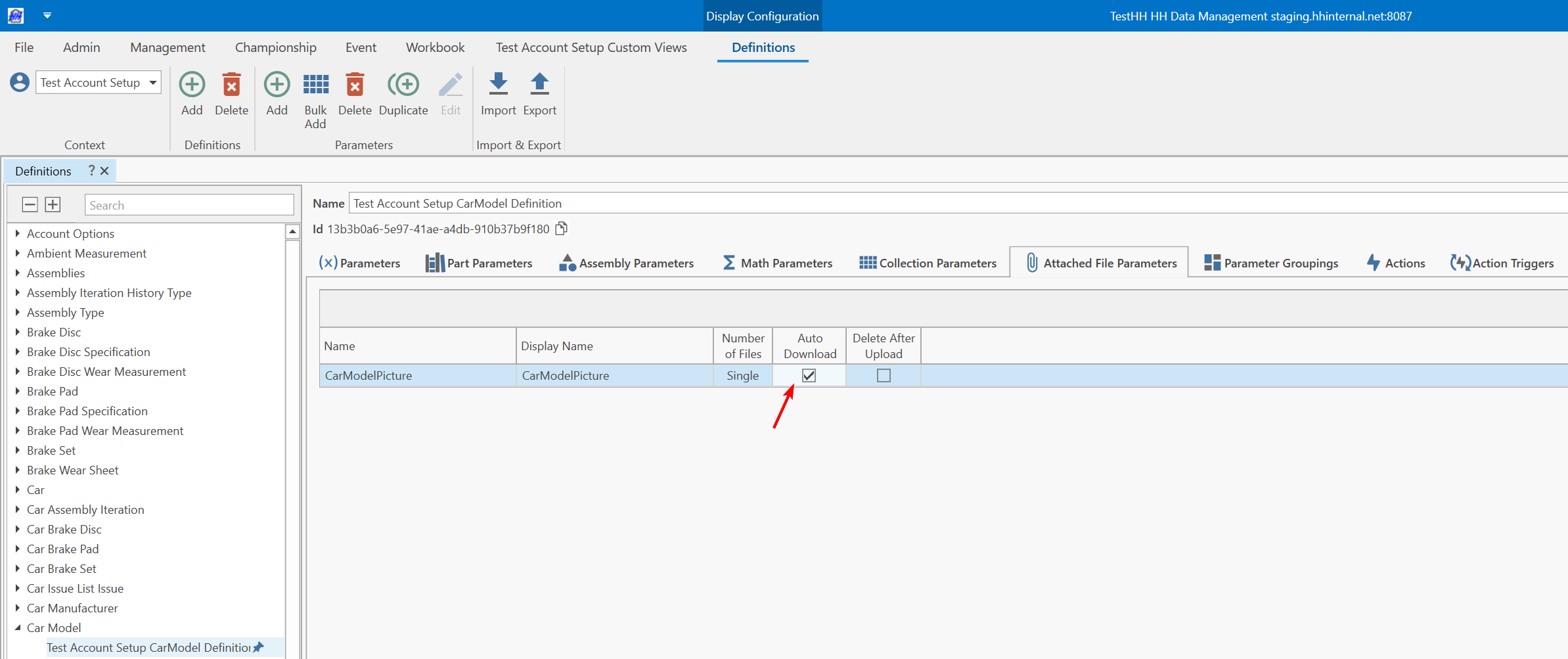
 Enable the Auto Download option to ensure all users see the picture automatically without needing to download it manually.
Create a custom view to upload the image
Create a custom column profile linked to the car model definition
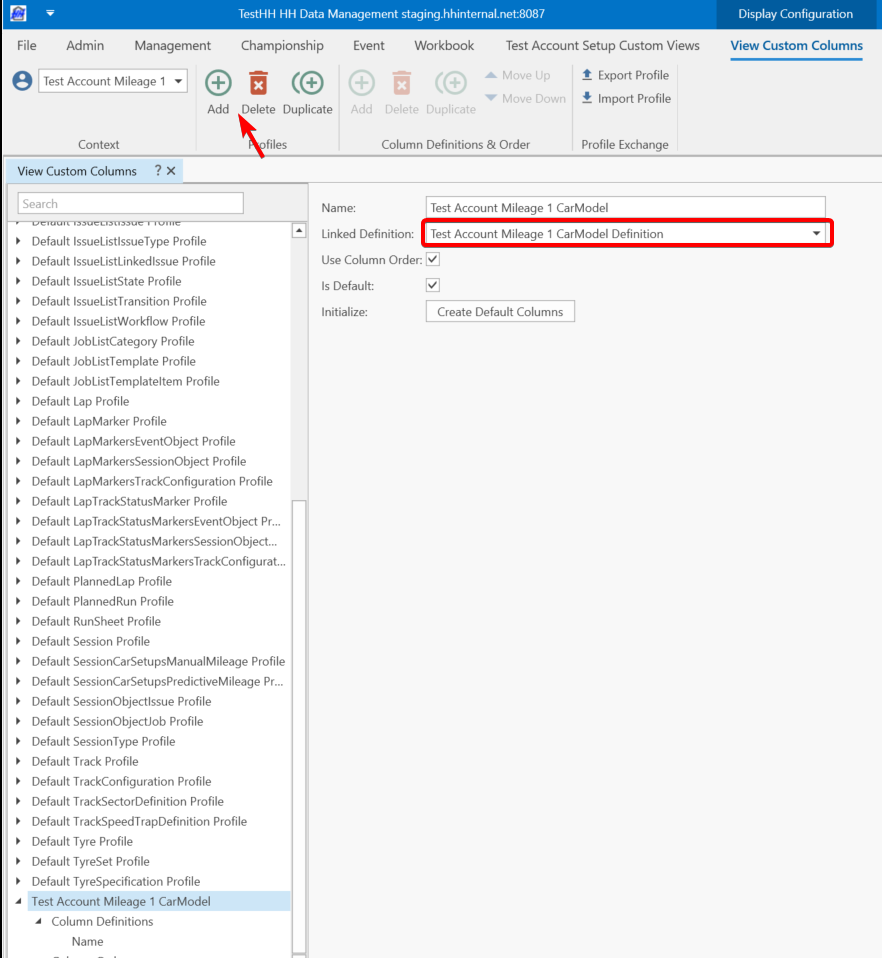
A CID could also be used.
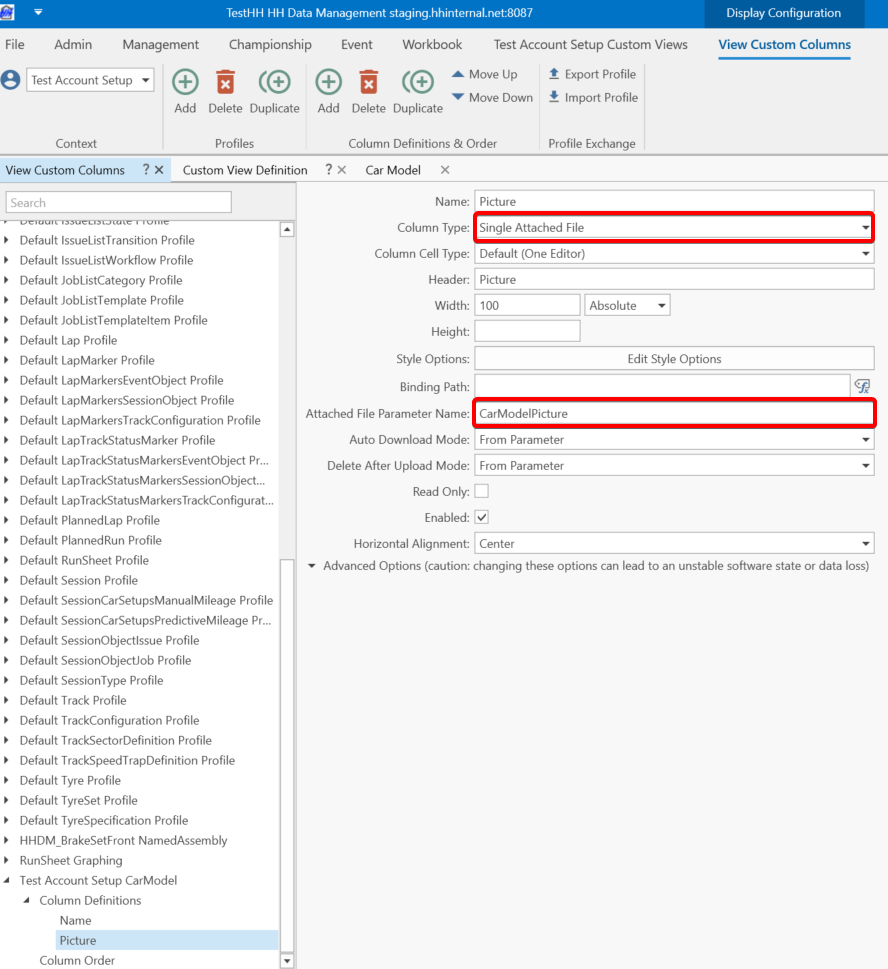
Add a single attached file column link to the attached file created
Add a custom view using this custom column profile
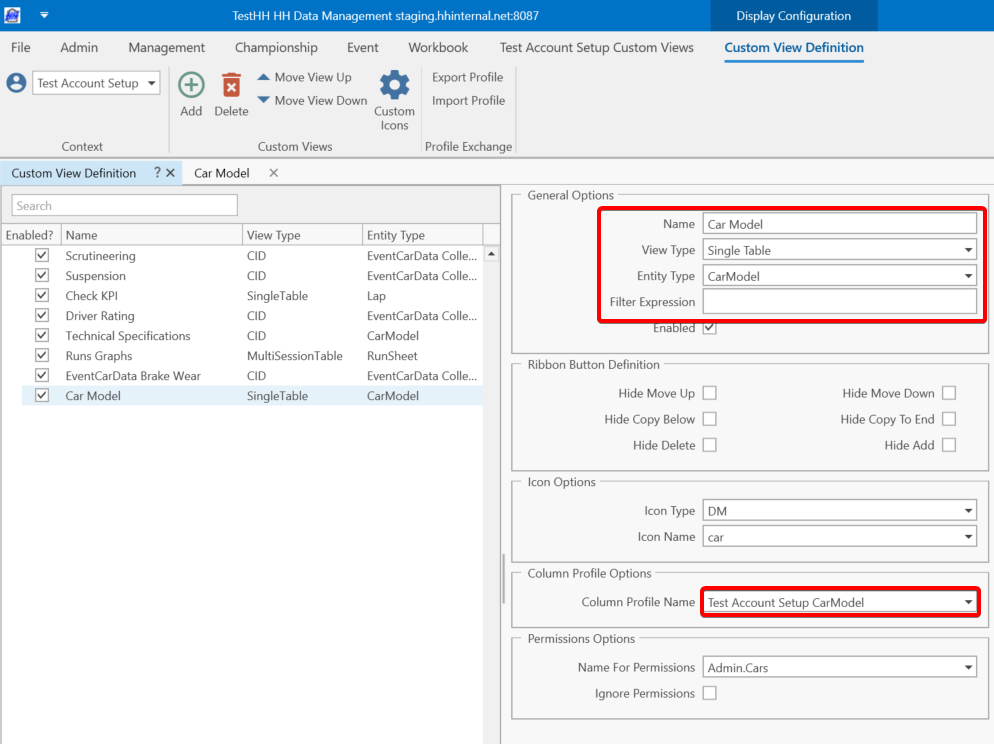
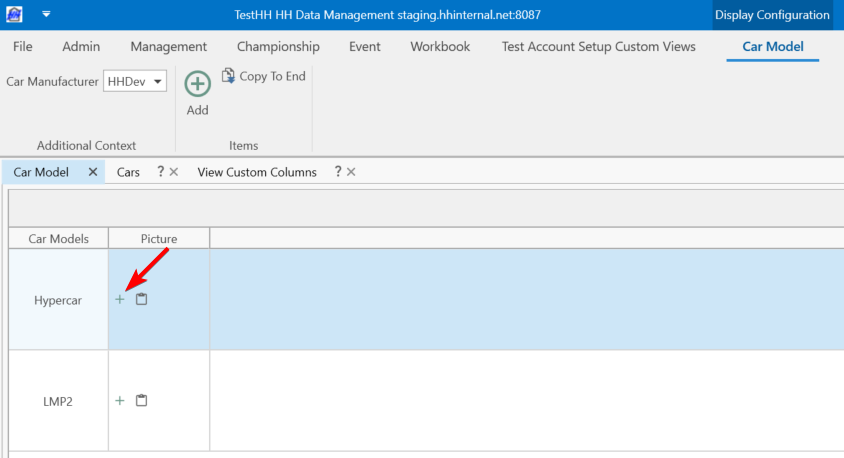
File can be uploaded from this view
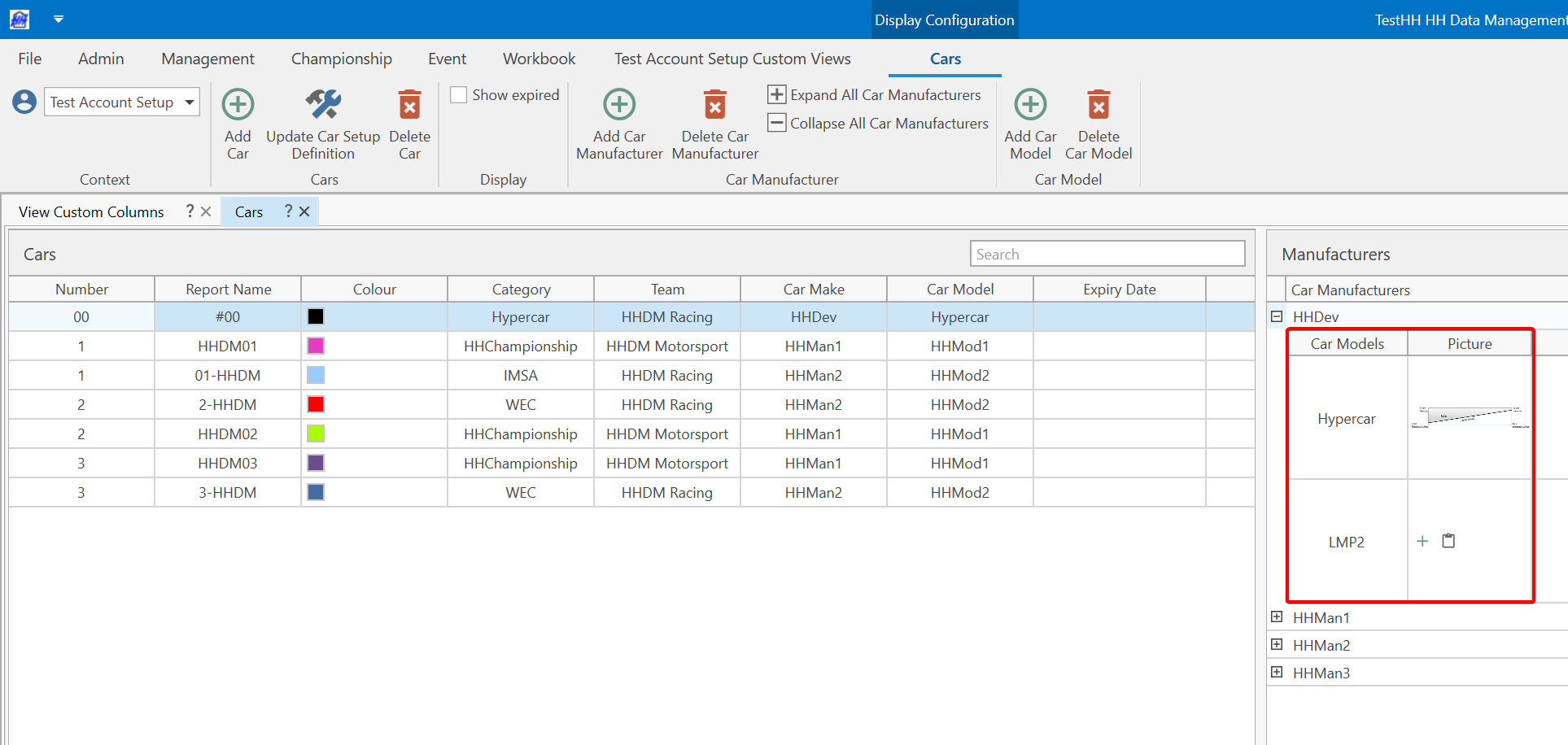
The car model custom column is also used in the car view
Display the image in a CID
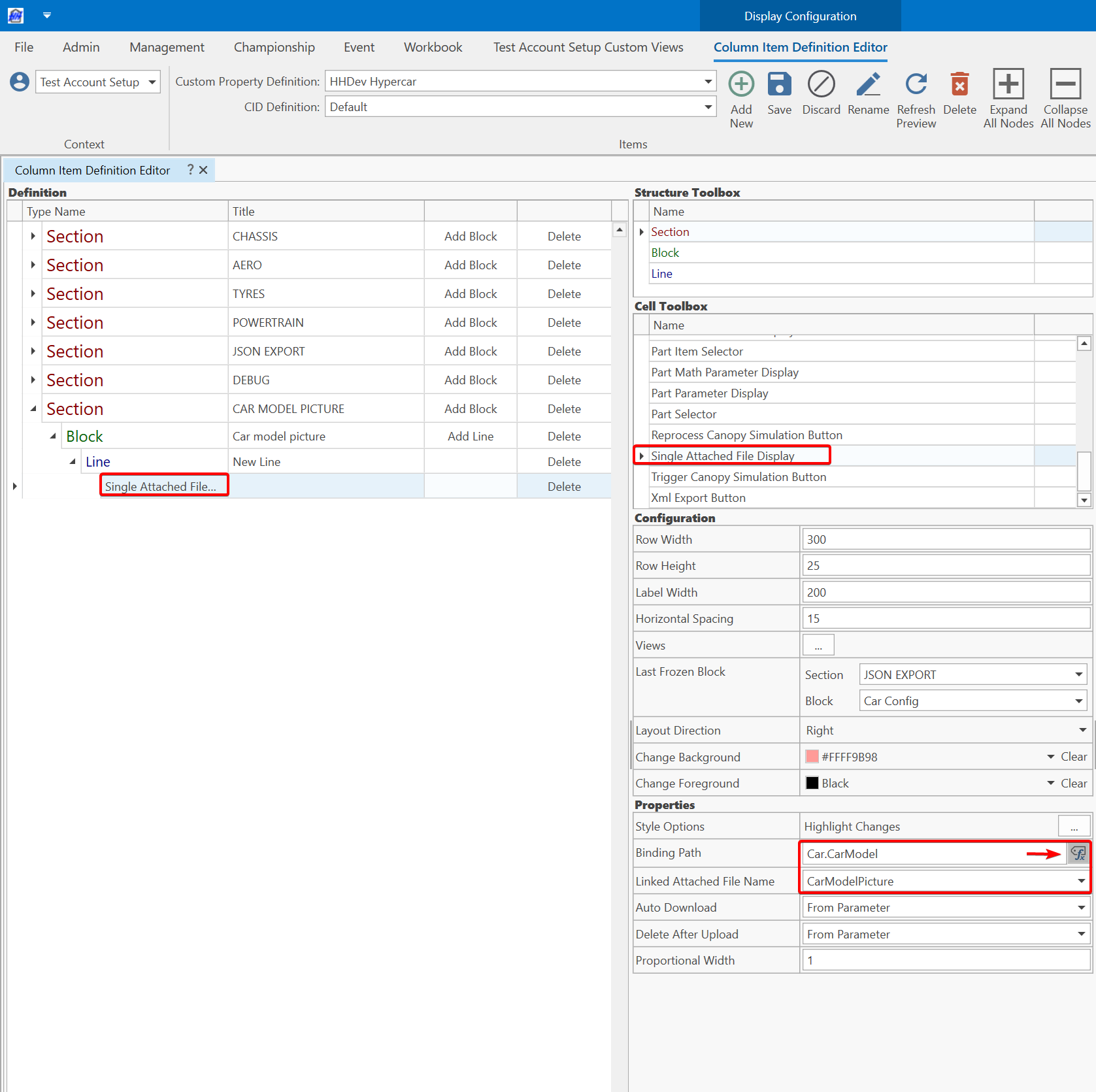
Add a single attached file display to the CID configuration to view the picture.
- Use Expression binding to resolve the correct path based on the parent definition of the CID.
- Adjust the line height property to increase the displayed height of the picture.
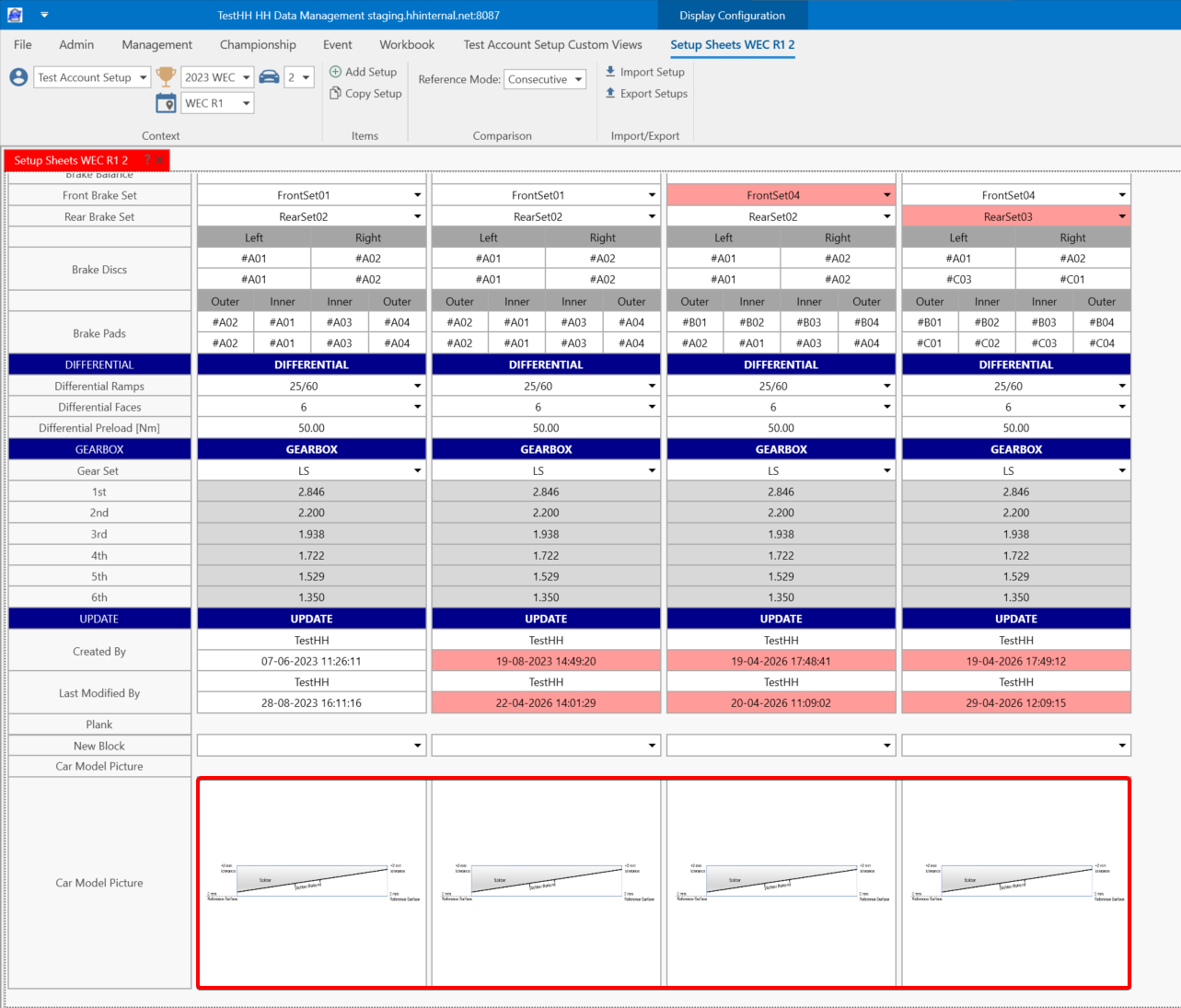
In a CGD, an image control can be used.