Measurements & History
Measurements
Assembly iterations and part items can both have measurements. The information stored for the measurement of type of assembly iteration and part item is customized using definitions. When an assembly type or part category is created, a new definition for the measurements will automatically be created. There are basic views to enter measurement data for both the part items and assembly iterations, but the item measurements view is integrated with the mileage calculator and allows for mileage information to be added to the measurements when they are created.
Part item measurements
The basic viewer for the part item measurements can be found on the parts view

Measurements can be added or deleted using the buttons on the ribbon bar.
The columns shown in the part item measurements table are automatically created based on the parameters in the part item measurement definition, however the columns can be customized by creating a custom column profile.
Assembly iteration measurements
The basic viewer for the assembly iteration measurements can be found in the assembly inventory view
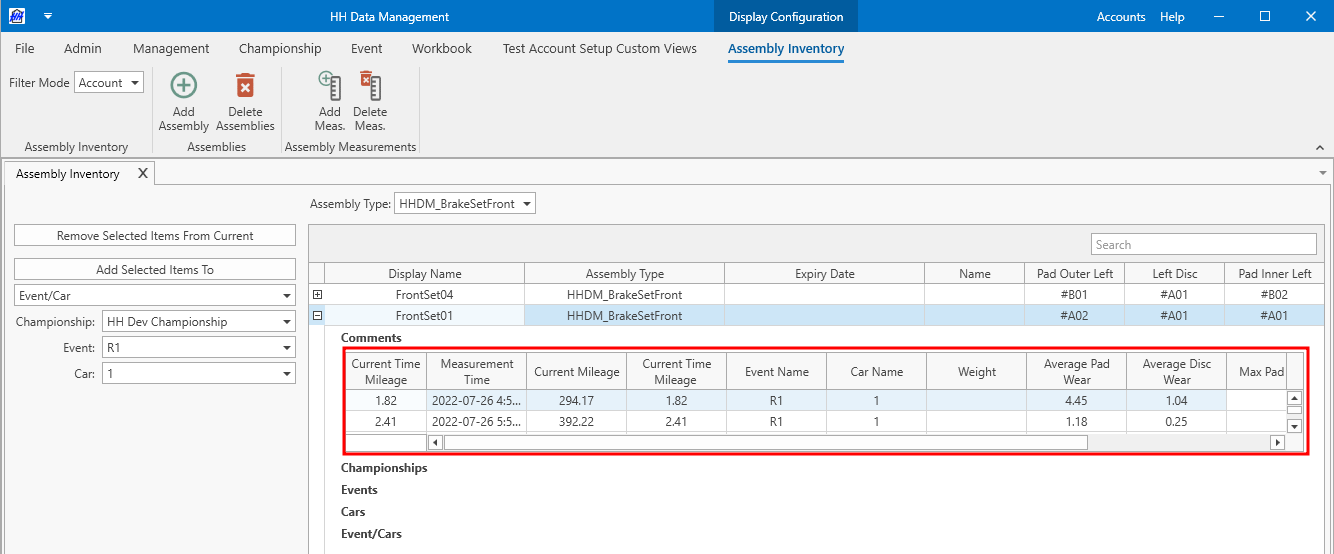
Measurements can be added or deleted using the buttons on the ribbon bar.
Adding an assembly iteration measurement will cause a linked measurement to be created for all referenced assembly iterations and part items. If the measurement is deleted in the future then all linked measurements will also be deleted.
The columns shown in the assembly iterations measurements table are automatically created based on the parameters in the assembly iteration measurement definition, however the columns can be customized by creating a custom column profile.
Item measurements view
The item measurements is the main view that is intended for viewing and editing both part item and assembly iteration measurements. It is also integrated with the mileage calculation so that the current mileage will be recorded for all linked measurements that are created.
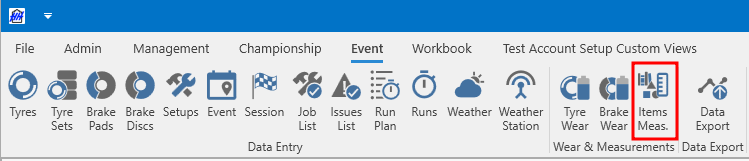
The item measurement view can be accessed from the event view of the ribbon bar:
The item measurement view will open:
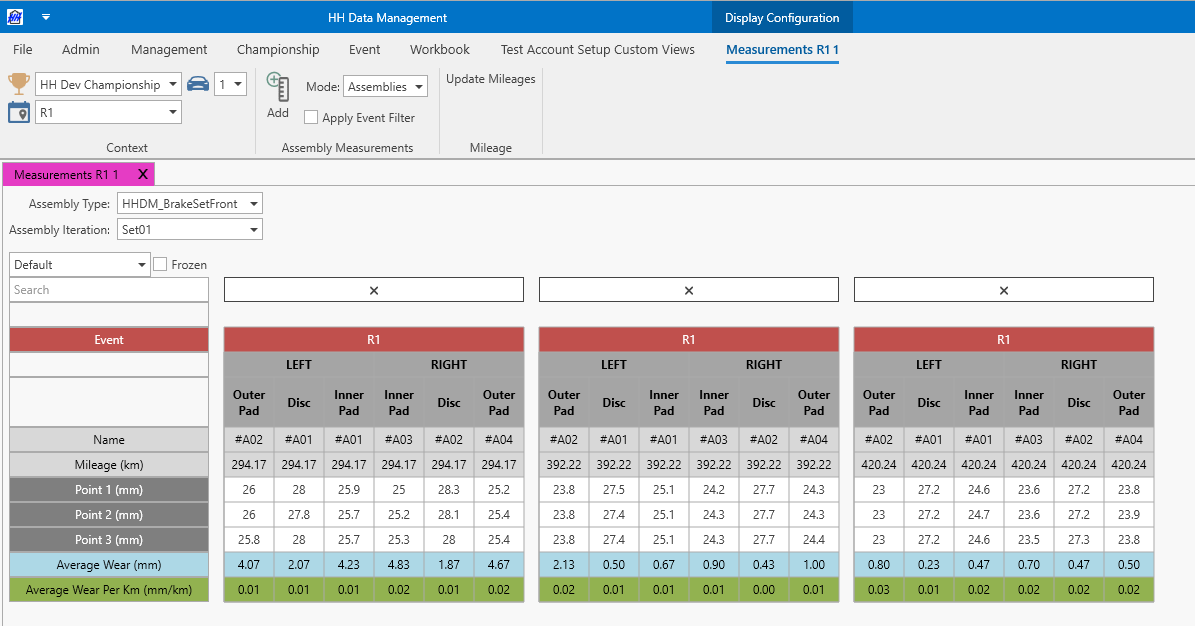
The item measurement view is based on the the CID and can be customized by creating a CID definition linked to the corresponding assembly iteration or part item measurement definition.
The linked CID definition must be given the name "MeasurementView" for it to be used in the Measurements view.
When an item measurement is created it will use the mileage calculation to calculate the current mileage at the time the measurements were recorded. To do this the mileage results must be available locally. This can be accomplished by clicking the update mileages button on the ribbon bar.
The mode of the view can be changed on the ribbon bar, between part items and assemblies. This changes the comboboxes at the top of the view to allow selecting the assembly iteration or part item for which the measurements will be shown. The apply event filter checkbox controls which measurements will be shown in the view. If the checkbox is selected the only measurements that were created in the current event (based on the context selection) will be shown. Otherwise all measurements will be shown. The measurements are shown in chronological order based on the MeasurementTime parameter.
Adding a measurement
To add a measurement make sure the correct event and car are selected in the context selection on the ribbon bar. Click the add button on the ribbon bar, a window will open:

This allows last run that the part item or assembly iteration was used in to be defined and this will be used to calculate the mileage for the measurement. The downloaded mileage is used to calculate the mileage of the component before the current event, and then the local data from the runsheets and laps are used to calculate the mileage that has been accrued in the current event.
Working with measurements
Calculating wear between measurements
A math parameter on the part item or assembly iteration measurement definition can be used to calculate the difference between two consecutive measurements. The Previous keyword can be used to access the previous measurement. For example if a brake set assembly has a math parameter called PadAverageWear that calculates the average pad wear on each measurement, the difference between two consecutive measurements could be calculated by creating a math parameter with an expression of PadAverageWear - Previous.PadAverageWear.
Accessing the latest measurement
The last measurement for all part items and assembly iterations can be accessed in the software (in math expressions, custom columns, data exports etc.) using the parameter LastMeasurement. This parameter automatically returns a reference to the last measurement (based on the chronological order).
History
Assembly iterations and part items can both have history items. Like measurements, the information stored for history items is customized using definitions. When an assembly type or part category is created, a new definition for the history will automatically be created. By default, there is no dedicated view to enter history data like there is for measurements, this can only be managed on the assembly inventory view in the "history" table.
Assembly iteration history
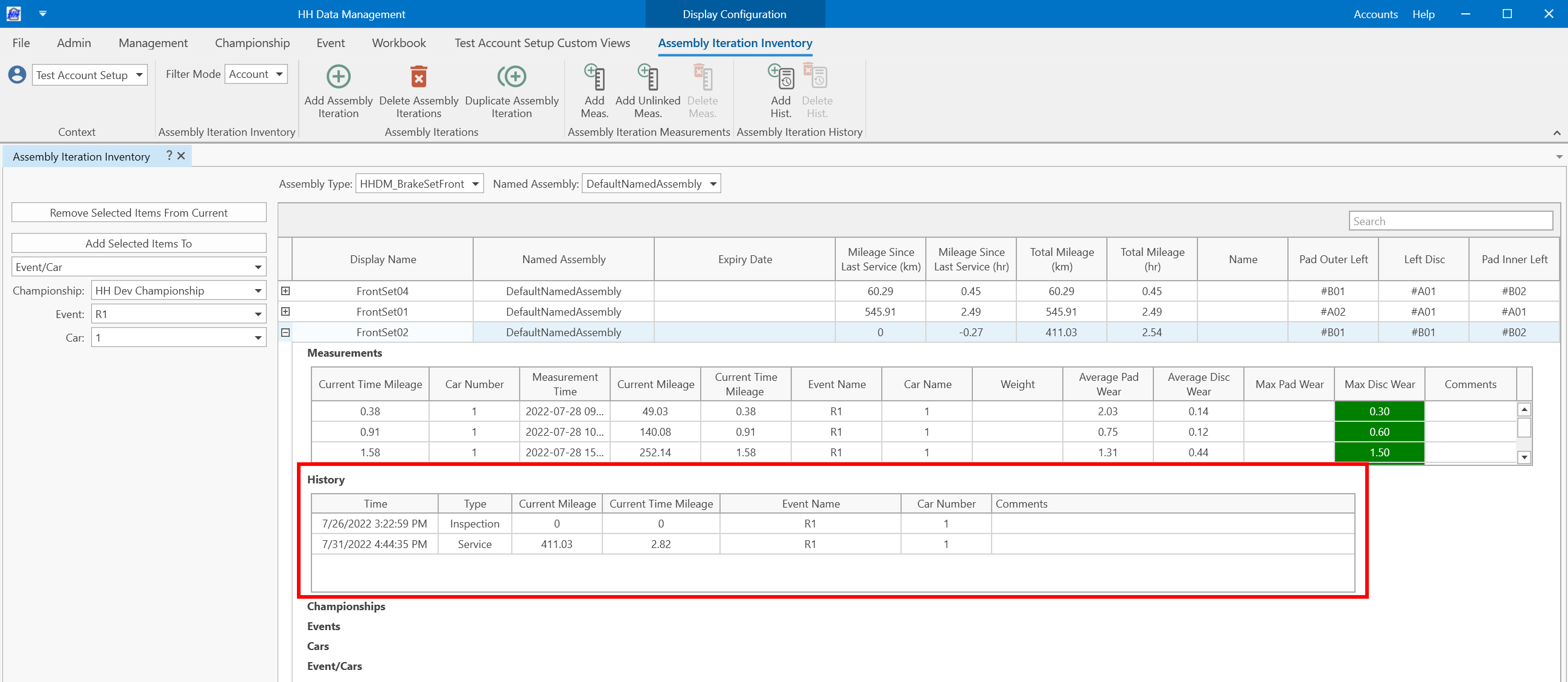
History items can be added or deleted using the buttons on the ribbon bar.
The columns shown in the assembly iterations history table are automatically created based on the parameters in the assembly iteration history definition, however the columns can be customized by creating a custom column profile.
When creating a history item, a context selection wizard is presented to select the last run in which the assembly iteration was used. This is used to calculate the mileage for the history item. The downloaded mileage is used to calculate the mileage of the component before the current event, and then the local data from the runsheets and laps are used to calculate the mileage that has been accrued in the current event.
Working with history
History Types
By default, no type is specified for a new history item. This can be edited using the combobox in the history table
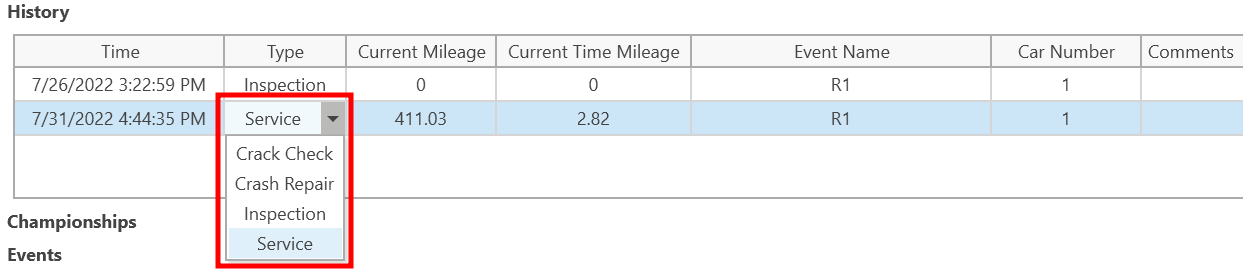
This combobox is populated using the history types view.
This type parameter can be used in calculations. For example, history types have a "ResetsMileage" boolean parameter that is used when computing the "MileageSinceLastService" and "MileageHoursSinceLastService" parameters on assembly iterations. These built-in math parameters find the most recent history item with a history type that has "ResetsMileage" set to true and computes the difference between the mileage recorded in that history item to the assembly iterations current total mileage.
An assembly iteration's history can be accessed in math parameters using the AssemblyIterationHistories property on the assembly iteration definition. This is a list, sorted by time in ascending order, of all recorded history items on a given assembly iteration.