Session Clock
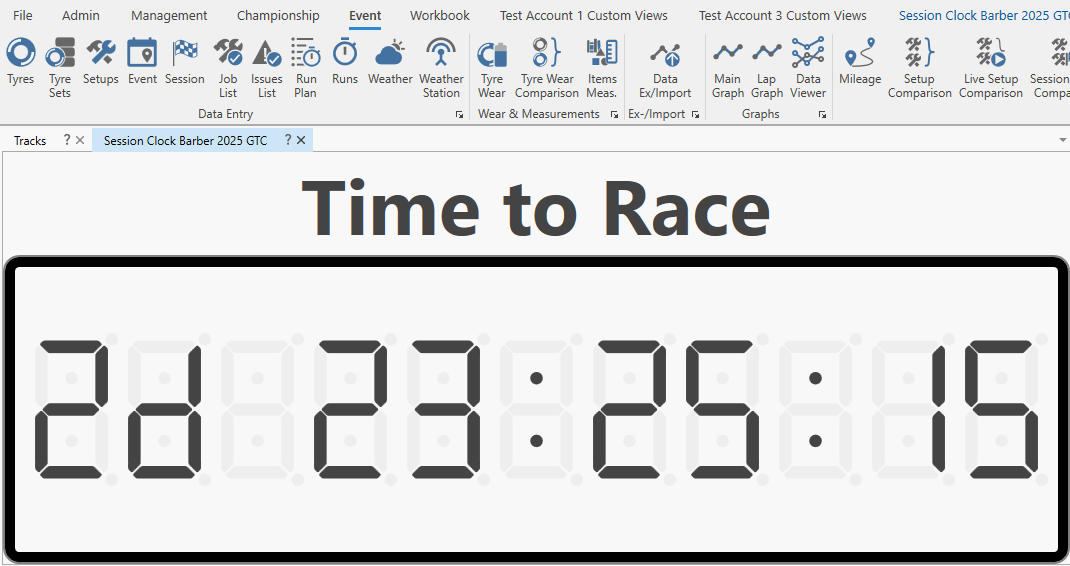
The session clock view can be accessed from the event tab of the ribbon bar:

The session clock provides a timer count down to the next session, based on the selected event, the start times of the sessions in the event and the current computer time.
Selected sessions can be excluded from the session clock. For example, if simulator sessions are running at the same time as track sessions, exclude the simulated sessions so that they don't interfere with track sessions on the session clock.
To exclude one or more sessions from the session clock:
-
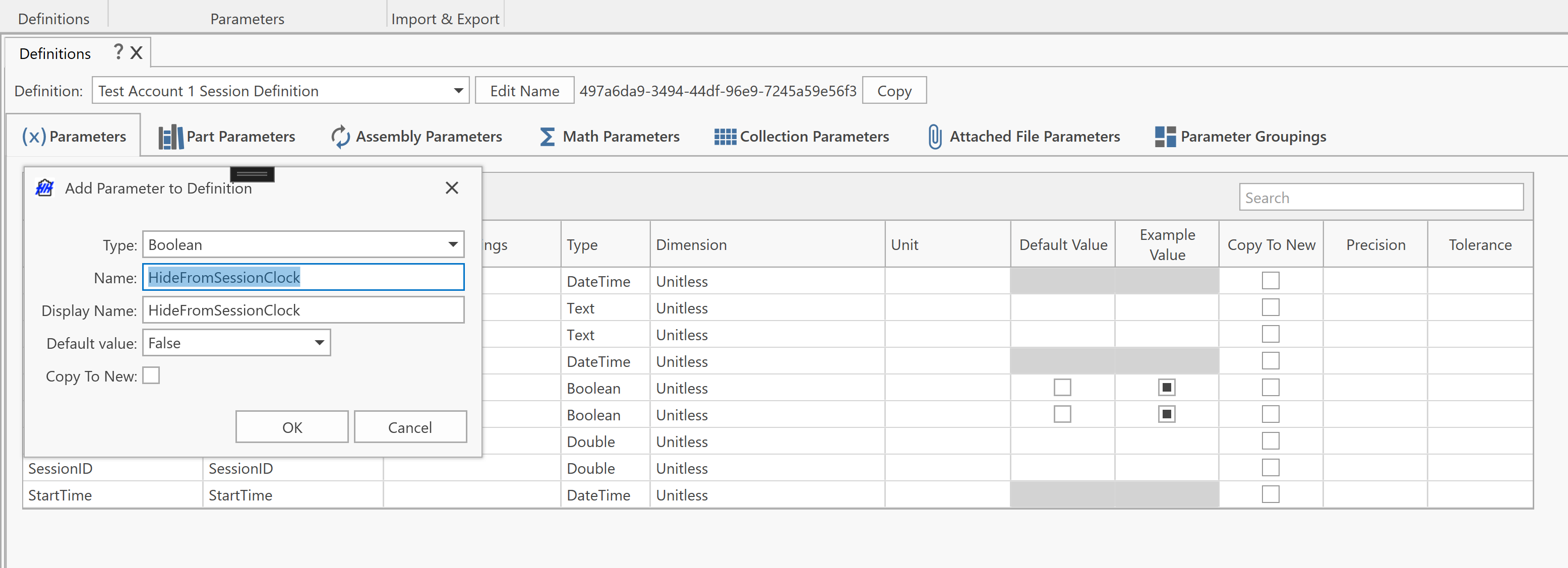
On the Definitions page, add a boolean property to the Session definition: HideFromSessionClock.
-
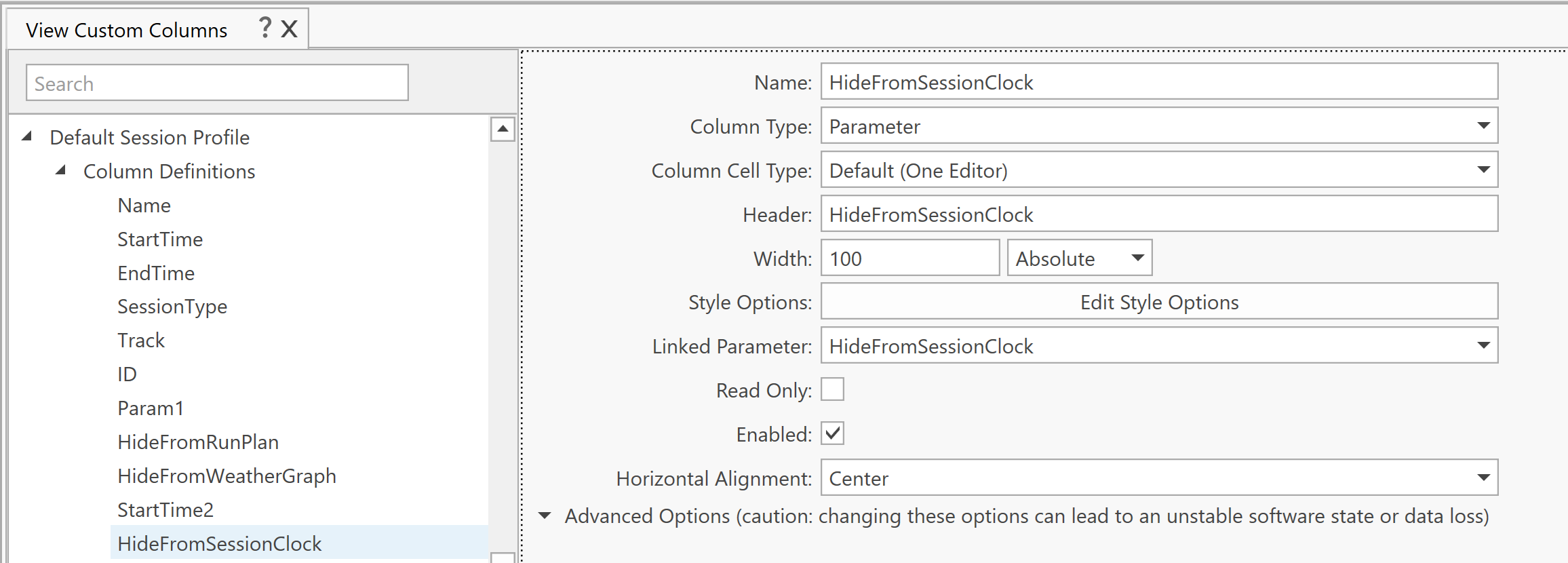
On the View Custom Columns page, add the column to the Default Session Profile for the new property.
-
On the Event Management page, there will now be a column for the property. Set the property to "true" for each session to be excluded from the session clock.

Showing days for long countdowns
When the remaining time is less than 24 hours, the clock displays it as HH:MM:SS (for example 06:00:01).
When the remaining time is at least one full day, a days segment is automatically prefixed: a 30-hour gap renders as 1d 06:00:01. The days segment disappears once the remaining time drops below 24 hours.
This behaviour applies to both the desktop session clock view and the session clock cell in the web app's Custom Grid Display.