Event Data
This view can be fully customized using a CGD and enabling the Use CGD for Event Data view option. If this option is enabled then the view may not match the examples shown in this page.
The event data is a view that can be used to store and edit all information for an event/car, such as expected fuel consumption or fuel tank capacity. The event data view can be accessed from the event tab of the ribbon bar:

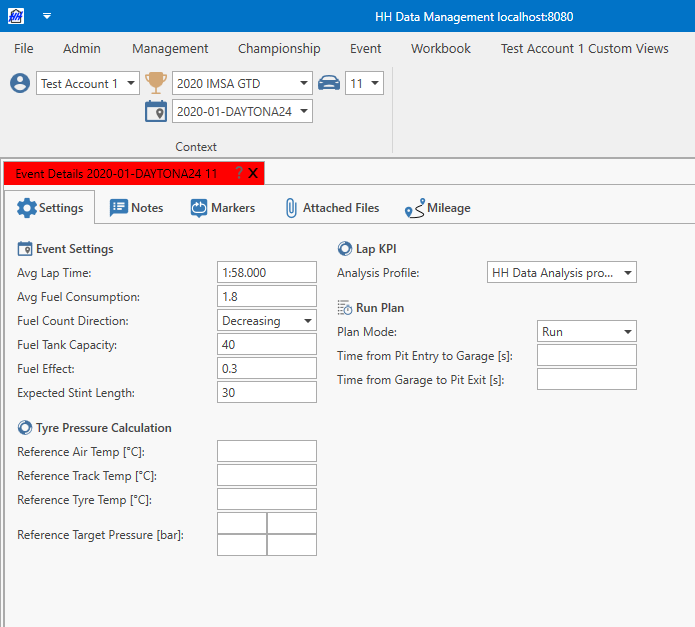
By default, there are five tabs on the event data view:
- Settings
- Notes
- Markers
- Attached files
- Mileage
Additional tabs can be added using a plugin
Settings
Event settings
The following parameters are needed to make the fuel calculation work in the run sheet and for the run plan calculator:
- Avg lap time
- Fuel count direction: Defines how fuel usage is calculated and displayed. This setting also controls whether the FuelUsed column appears in the lap table and whether FuelUsedSOR appears in the fuel management runsheet.
- Decreasing: Calculation starts from the initial fuel amount and counts downward. In this mode, FuelUsed runsheet UI controls are hidden.
- Increasing: Calculation starts from zero and counts upward. In this mode, FuelUsed runsheet UI controls are shown.
- Avg fuel consumption
- Fuel tank capacity
The following are optional:
- Fuel effect: Define the fuel effect in s/10 fuel unit for runsheet degradation calculations. Use a positive value. For example, enter 0.1 to represent a fuel effect of 0.1s per 10 kg when using kg as the fuel unit.
- Expected stint length (used in the tyre wear sheet)
- Data analysis profile
Tyre pressure calculation
Event-wide parameters for the tyre pressure calculation can be defined here.
Lap KPI
The data analysis profile to be used for the current event-car can be selected here.
Run plan
The run plan mode for the event can be set here, and also some pit lane timing information for use in the lap mode of the run plan.
Notes
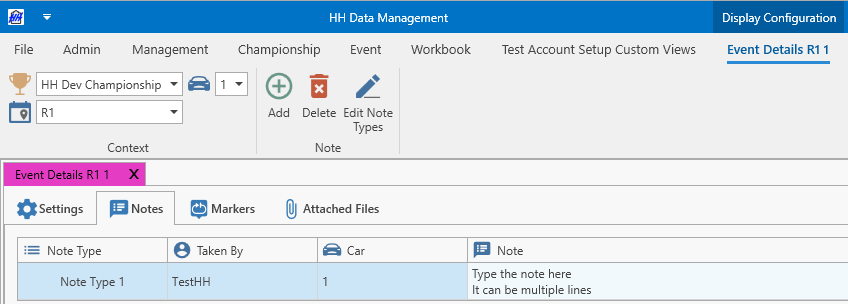
The notes tab is a structured list of notes. Note types can be added, edited or removed using the edit note types button on the ribbon bar.
Markers
The lap marker and lap track status marker associations can be defined on this tab.
Attached files
Shows an attached files view that allows files to be added.
Mileage
The manual and predictive mileage associations can be defined on this tab.